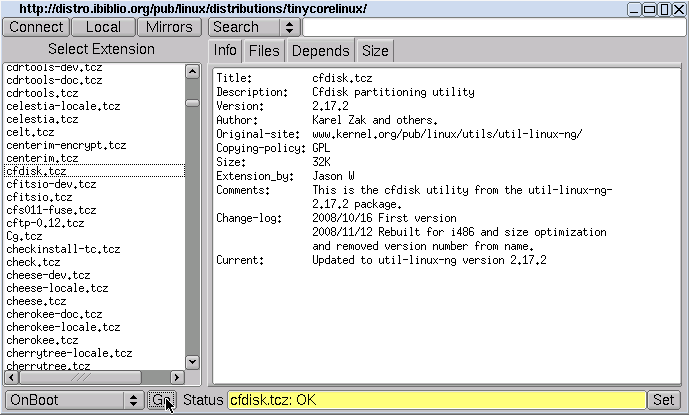
A Simple Download Howto Using Apbrowser.
Click on the wbar icon Apps (or access the right-click menu on the desktop and select Appbrowser)

Click on Connect

The list on the left side should now be populated. Select from the list, e.g., cfdisk.tcz.
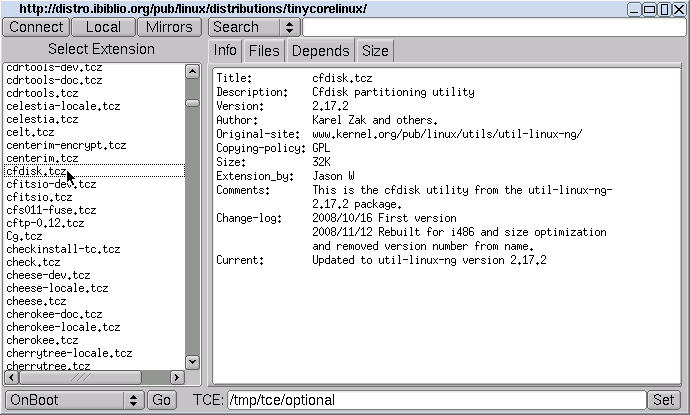
To install into the file system, click the Go button located in the bottom left corner. It should report that it went well by displaying OK.
Note: This typically means "installed into RAM". Using this option provides the fastest system, but at a very high RAM usage.
When you have already setup a boot code like tce=sda1 to tell Tiny Core where to store downloaded extensions or you have a tce folder on any Linux readable partition, cfdisk.tcz will be put there and it will be available after reboot immediately. Additionally this will save considerable RAM and therefore it is recommended to setup a tce folder for your extensions.
There are other options as well like OnDemand or Download + Load. The first means, that Tiny Core will only load the extension, when you click the appropriate icon in wbar. The second one is for downloading and loading the extension, but not always at startup (the entry in tce/onboot.lst will be omitted).